
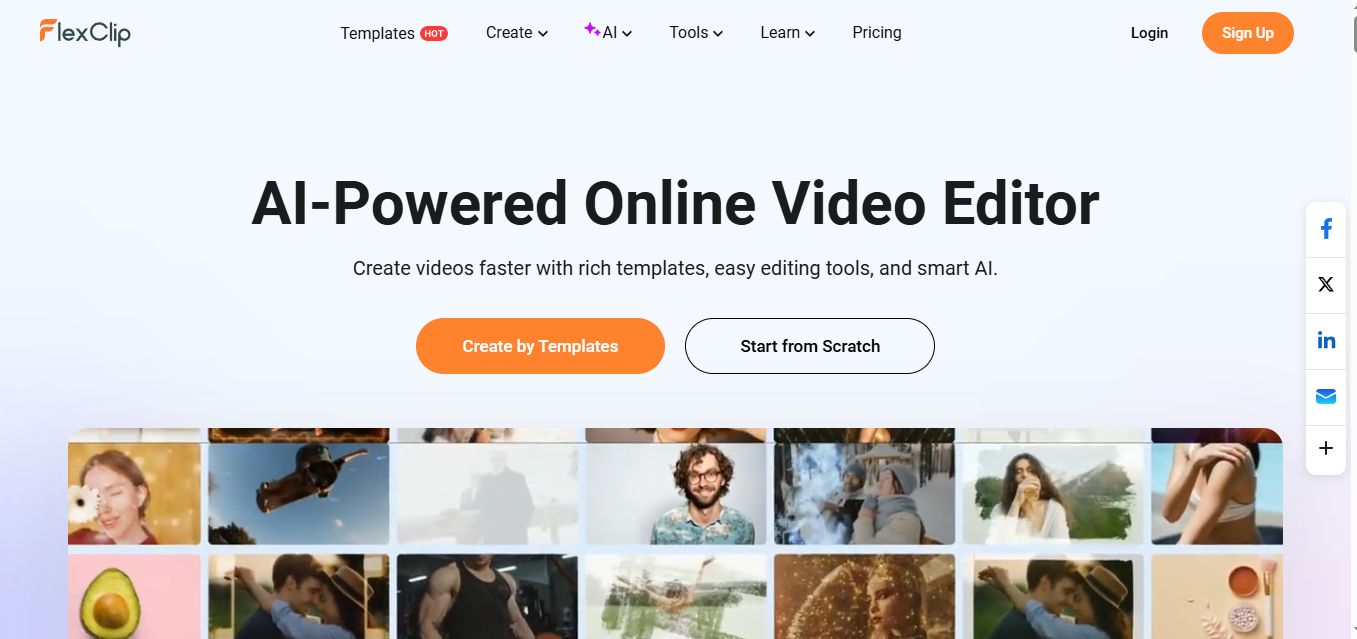
Creating professional videos used to demand expensive software, a steep learning curve, and hours of editing experience. Not anymore. FlexClip has quietly become one of the most powerful AI video editors for creators, marketers, and businesses. With over 6,000 templates, 4M+ stock media assets, and a growing suite of AI tools powered by models like Google Veo 3, Kling AI, and Hailuo AI, it sits in a category of its own for browser-based video creation. But is it actually worth your time and money? This review covers everything: features, pricing, pros and cons, and honest comparisons so you can make a fully informed decision before signing up.
What Is Flexclip?
Developed by PearlMountain Limited, a Hong Kong-based software company, this platform has grown into a tool used by millions of creators worldwide. Unlike traditional video editors that require downloads and steep learning curves, it lives entirely in your browser. You can create promotional videos, social media clips, YouTube content, slideshows, tutorials, product demos, and presentations with zero software installation.
In late 2025, PearlMountain rolled out two landmark AI innovations, AI Recreate and Auto Edit, that effectively cut professional video production time from hours to minutes. The product in 2026 is fundamentally more powerful than even two years ago.
Who is it designed for? Content creators, YouTubers, small businesses, marketing agencies, social media managers, educators, HR teams, and startups – essentially anyone who needs polished video output without the complexity of professional desktop software.
Key Features
AI Video Generator
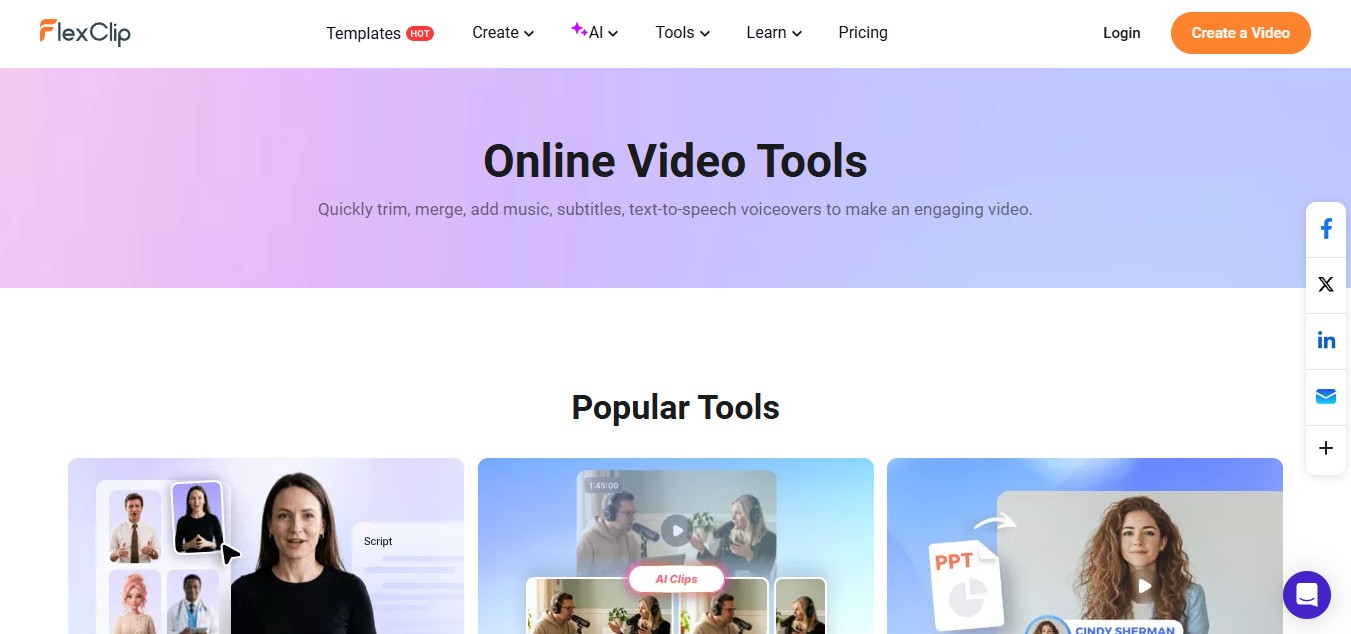
The headline feature offers two modes: Text to Video and Image to Video. Users can generate video scenes from text prompts, covering human actions, landscapes, product demos, and 2D/3D animations. Integrated AI models include Hailuo, Kling, Google Veo 3, ByteDance Seedance 2.0, and OpenAI Sora 2. An AI script writer automates the most time-consuming parts of video production.
AI Video Editing Tools
- Auto Subtitles: AI-generated captions are added accurately in minutes, saving 20–30 minutes of manual captioning per video.
- AI Text-to-Speech: 400+ voice options converting scripts into natural-sounding voiceovers instantly
- AI Voice Cloning: Recreate a specific voice tone for consistent brand narration
- Background Remover: Works on video clips and images with one click
- AI Image Generator: Generate custom visuals directly within the editor
- AI Translator: Enable multi-language video creation without re-recording voiceovers
- AI Recreate: Upload your media and let AI auto-match footage to a template’s structure and pacing
- Auto Edit: AI analyses raw clips and assembles polished videos with transitions, music, and captions
- Product URL to Video: Paste an Amazon or eBay product link and generate a promo video automatically
- PPT to Video: Convert PowerPoint or PDF presentations into engaging videos with auto-generated scripts
Drag-and-Drop Editor
Standard editing tools include a timeline editor, transitions, text animations, screen recording, and export in various aspect ratios. A text-based editor lets you edit video by editing a transcript, ideal for voiceover-heavy content.
Templates & Stock Library
Over 6,000 professional templates cover promos, real estate, corporate intros, social posts, tutorials, and product demos. All are fully customisable. The 4M+ royalty-free stock library includes videos, images, and audio, meaning most users can produce complete videos without any original footage.
Brand Kit & Collaboration
Business plan users can upload logos, brand colours, and custom fonts. Team collaboration features allow multiple users to work on shared projects, which is practical for agencies and small creative teams.
Pricing
Pros and Cons
Pros
- Beginner-friendly: most users produce polished videos within 15–20 minutes of signing up.
- AI-powered editing: Auto Edit, auto-subtitles, text-to-speech, and video generation are all genuinely time-saving.
- Huge template collection: 6,000+ professional designs covering virtually every use case
- Fast rendering and cloud-based processing mean a 2–3-minute video typically renders in under 4 minutes.
- Browser-based: works across Windows, Mac, Linux, and Chromebook with no installation
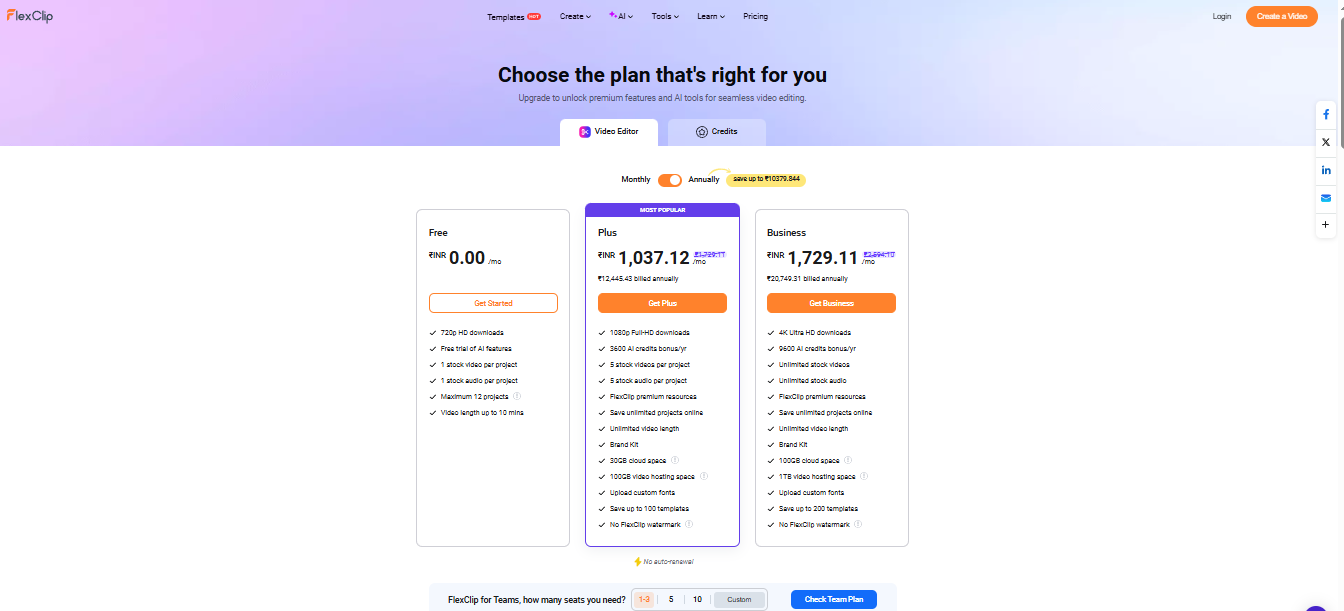
- Affordable: The Plus plan at $9.99/month is approximately 30% below the category average for AI video tools
- Excellent stock assets: 4M+ royalty-free videos, images, and audio included on paid plans.
Cons
- Limited free exports are restricted to 720p with a watermark and just 1 stock asset per project.
- Single video track – no multi-track timeline editing for complex layered productions
- Not a Premiere Pro replacement: advanced colour grading, VFX, and compositing are out of scope.
- Internet required; no offline editing; export speed depends on connection quality.
- Some AI tools are credit-gated; heavier AI usage requires the Business plan or additional credit.
Performance
- Speed: A 2–3-minute video typically renders in under 4 minutes, leveraging cloud processing so your local hardware doesn’t matter.
- Ease of Use: Users on Capterra rate it around 4.5/5 for ease of use, which accurately reflects its core strength. The drag-and-drop storyboard interface requires zero prior editing knowledge.
- Video Quality: 1080p Full HD on all paid plans. While 4K export is not currently available, 1080p is more than sufficient for YouTube, social media, and most professional marketing applications.
Export Options: 16:9 for YouTube, 9:16 for TikTok and Reels, 1:1 for feed posts.
How It Compares
| Tool | Strength vs This Platform | Weakness vs This Platform |
| Canva | More design versatility; strong for static creative | Weaker AI video suite; fewer templates |
| InVideo AI | Better for high-volume AI-first video creation | Higher price point; less template variety |
| Pictory | Stronger at turning blog posts into videos | Limited AI generation features |
| VEED | Cleaner editor; better subtitle styling | Fewer templates and stock assets |
| CapCut | Free with multi-track editing; great for mobile | Requires download; less stock library depth |
| Descript | Superior for long-form, transcript-based editing | More complex; higher learning curve |
The platform hits a sweet spot for creators who make marketing videos, social clips, and presentations regularly and want something faster than Premiere Pro but more capable than Canva’s video editor.
Who Should Use It?
Recommended for:
- Small businesses producing marketing videos in-house
- Solopreneurs who need consistent social media content without a video team
- Marketers managing multi-platform campaigns with high video output
- Content creators who value speed and template quality over granular control
- Social media teams producing regular short-form video at volume
- Educators and HR teams are building training and onboarding content
Not ideal for:
- Professional filmmakers or Hollywood-level editing workflows
- Complex VFX projects requiring multi-track timelines and colour grading
- Creators who need offline editing capability
- Advanced editors who require the depth of Premiere Pro or DaVinci Resolve
FAQs
- Is it free?
Yes. The free plan offers full access to editing tools, though exports are limited to 720p and include a watermark. - Does it add a watermark?
Only on the free plan. Any paid subscription removes the watermark instantly. - Can I use it commercially?
Paid plan subscribers are free to use all stock library resources and videos they create for commercial purposes. - Is it better than Canva for video?
Yes, for video specifically. It has a deeper AI video suite, more video templates, and a larger stock library. Canva remains stronger for static design and presentation work. - Is it good for YouTube videos?
Absolutely. Templates cover the 16:9 format, and features like auto-subtitles, text-to-speech, and AI video generation make YouTube content creation significantly faster.